XM Basecamp Support Center
If you don't find the answer to your question click the "Contact Us" button below
Having issues with your Qualtrics account or the Qualtrics Platform?


Note: The organization ID is key sensitive so make sure you're entering exactly as it is.
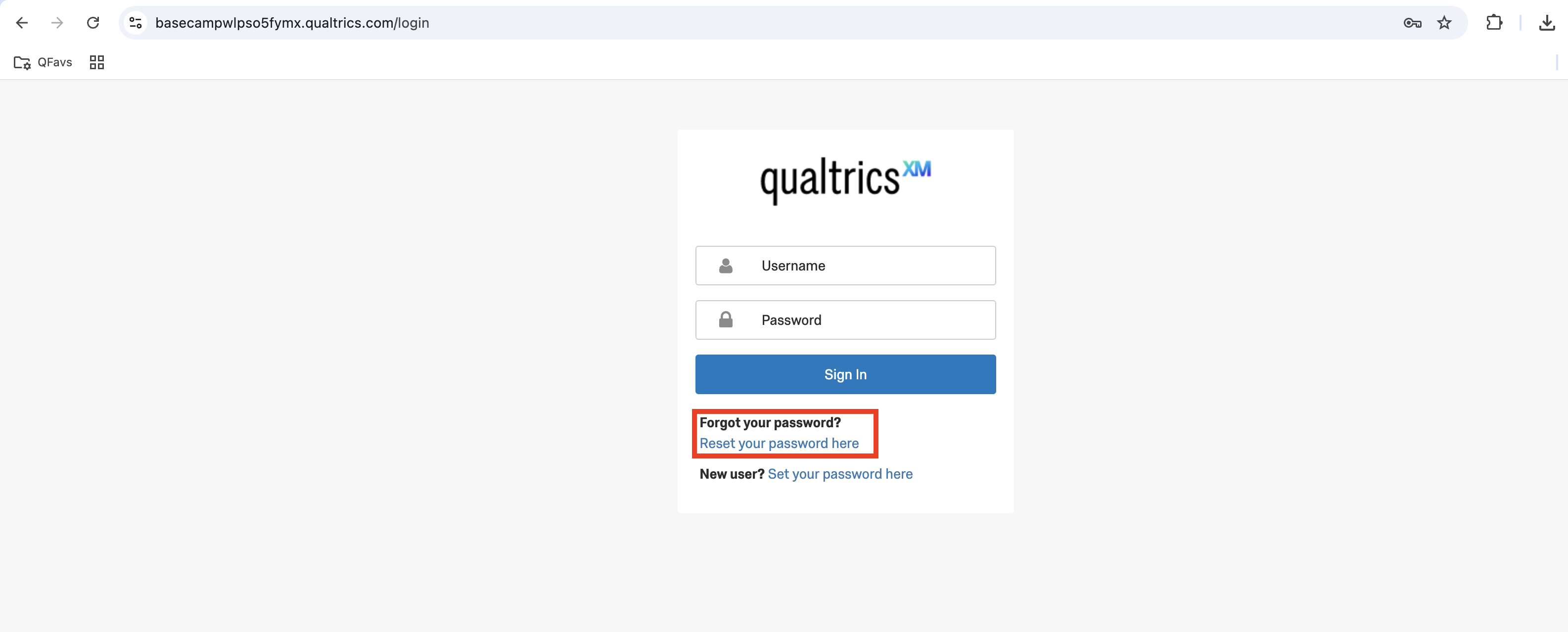
Note: If you don't remember your password click "Reset your password here" below the Sign in button.
For any user who wants to login to XM Basecamp and does not have an active Qualtrics account the best option is to create a free Qualtrics account here so they can login using the "Qualtrics credentials option" following the non-SSO steps shared in the question above. The second option and less recommended is to create a guest account using the option "Create a new guest account" from the XM Basecamp login options.
Gov1 Brand Admins need to enable XM Basecamp for their brand so that users can login and access training materials. Please see this Support Page for details on how this setting is enabled. Once this is done, users can follow these steps.
If you are following the exact steps above and not finding success, try an incognito window or a different browser. Or, try clearing cache and cookies on the main browser.
If you are still not finding success, please notify your Engagement Manager.
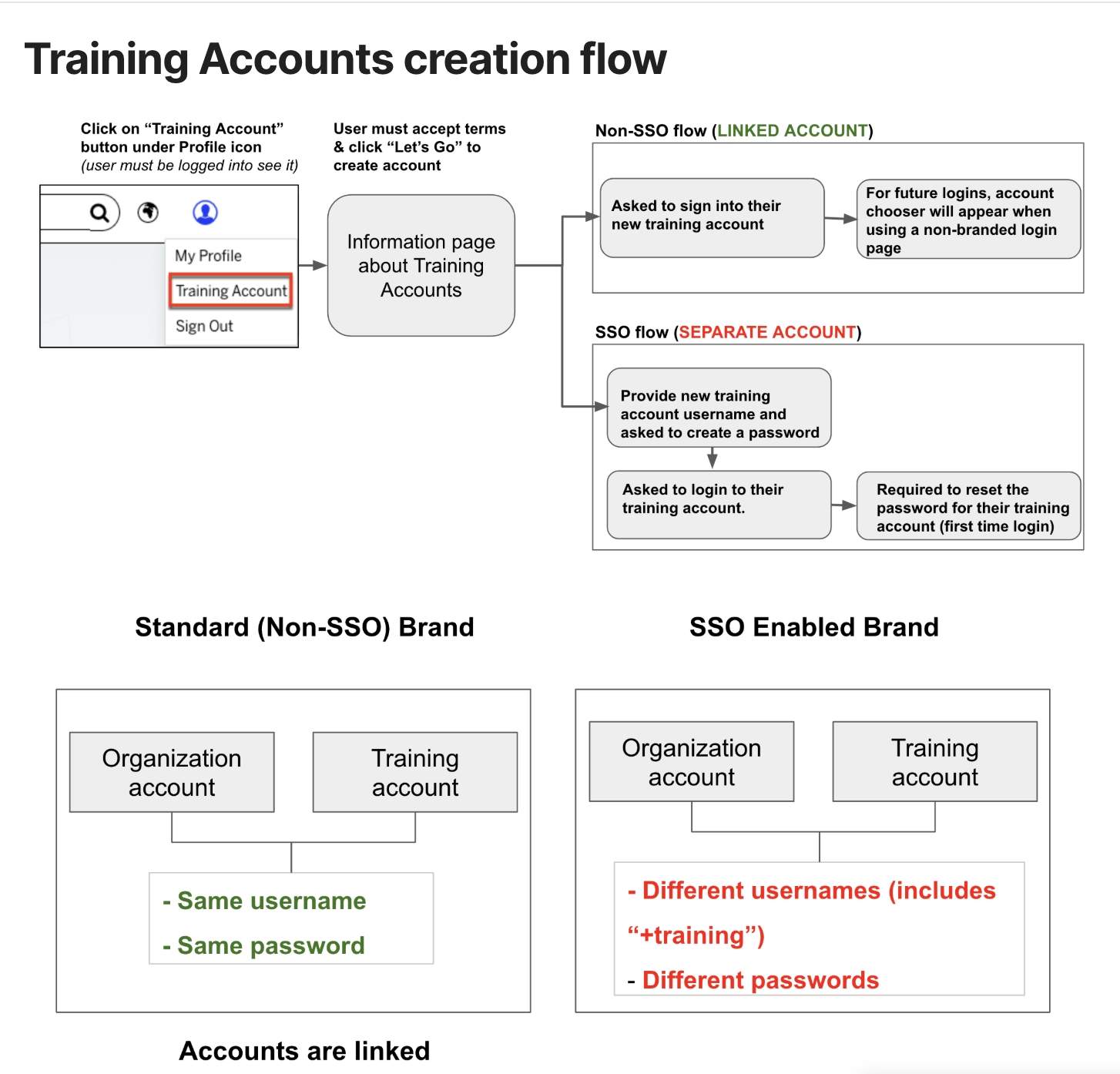
You must be logged into XM Basecamp, then navigate to your profile on the top right and click "Training Account" to initiate the flow.
Note: Training accounts use the same credentials (username and password) as your Qualtrics account unless they have an SSO account, in which case SSO users will have a separate username and password for their training accounts. Their username will include "+training" before the @ sign. (E.g. if their email address is john@example.com, their username will be john+training@example.com).
See the creation flow below:
Once you have unlocked any certification exam(s) through a direct online purchase or a promo code, follow these steps:
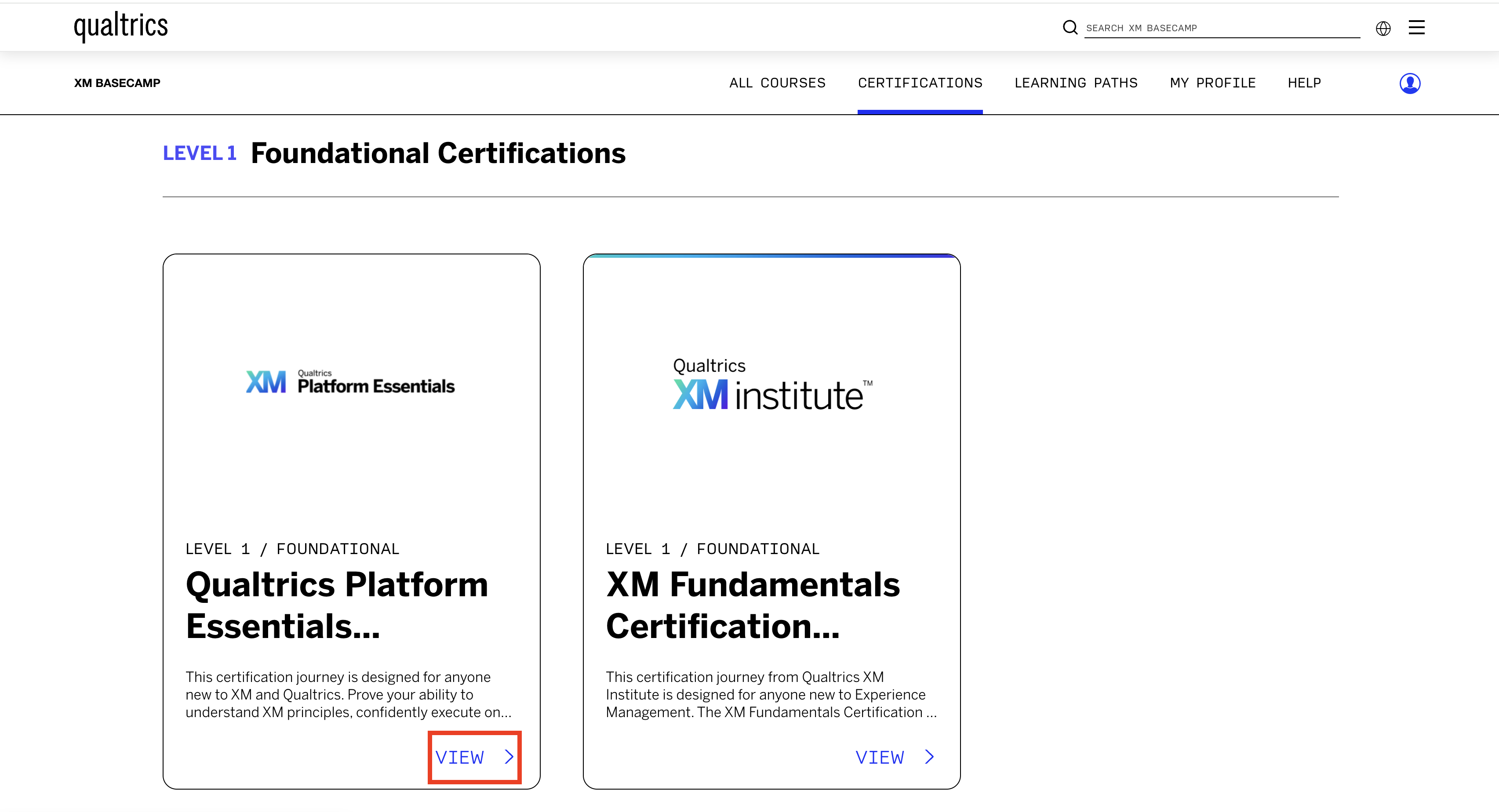
1. Go to any of the available certifications and click "view".

2. Select the Final project & exam option and click "Begin"

3. Click "Start"

4. Select the project or the exam to start it.
Once you have completed the exam, you will see your result immediately and will also receive an email with your results and relevant information regardless of the result.
You can view and share your certificates under your XM Basecamp profile.
Length: 50 Questions, 60 Minutes.
Languages: English (enabled for browser auto translations)
Length: 40 Questions, 60 Minutes
Languages: English (enabled for browser auto translations)
Length: 60 Questions, 75 Minutes
Languages: English (enabled for browser auto translations)
Length: 60 Questions, 75 Minutes
Languages: English (enabled for browser auto translations)
Length: 60 Questions, 75 Minutes
Languages: English (enabled for browser auto translations)
These kind of issues related to text or videos not showing are most of the time on the browser side, whenever there's a general issue on the XM Basecamp website the whole site won't work, in this case we suggest to follow the basic troubleshooting for browser errors like these options below:
a. Use our recommended browser and make sure it's up to date (Google chrome). If that's the one that is being used and it is up to date try to logout from XM Basecamp, then clear all cookies and cache, log back in and try again.
b. Try an incognito window and ensure the Third Party cookies switch is set to the grey (off) position (see image below) then log in to Basecamp.

c. Try a different browser.
d. Try a different device.
All of the XM Basecamp content is available in English, Spanish, French, German and Japanese.
You will be able to see your profile by clicking on the "My Profile".

There you will be able to find:
We can help you by merging an old account with a new one, to go through this process use the "Contact Us" option at the top of this support page and include your new email address under your new XM Basecamp account and your old account so we can transfer all of your training progress.
If you have not created a new account, you can follow these steps:
A. Create a free Qualtrics account here using your personal email address.
B. Using your new Qualtrics account created above, follow these steps to create your XM Basecamp account:
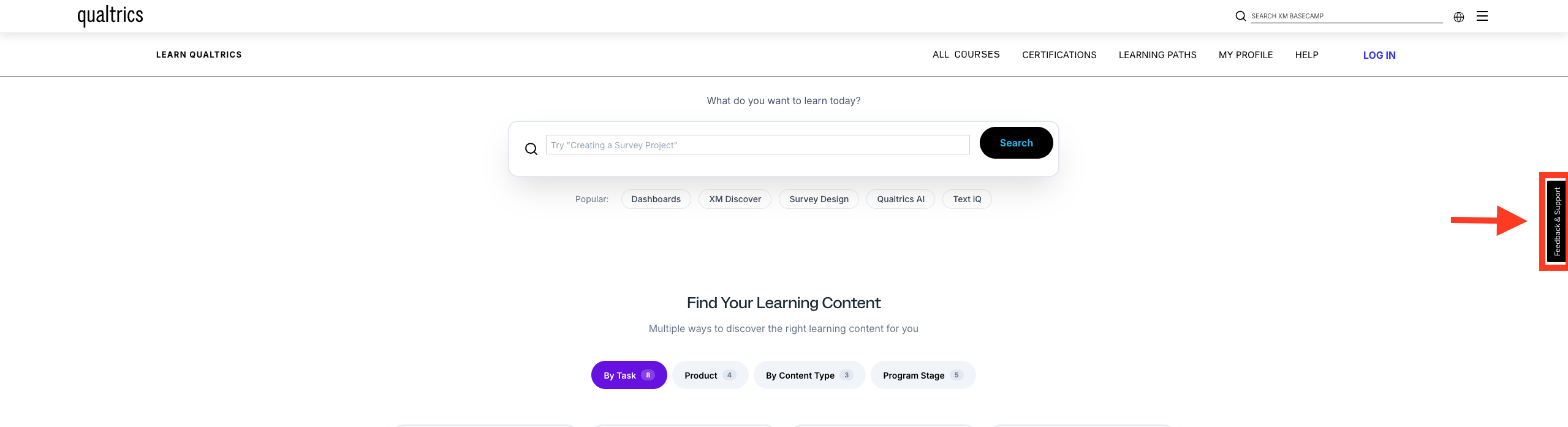
The "Feedback & Support" option is always visible on the right side of your screen. Use it to submit feedback regarding content, pages, website functionality, or related issues. This is also the place to report typos, seek guidance on troubleshooting the learning website or the Qualtrics Platform, and ask for private training details.
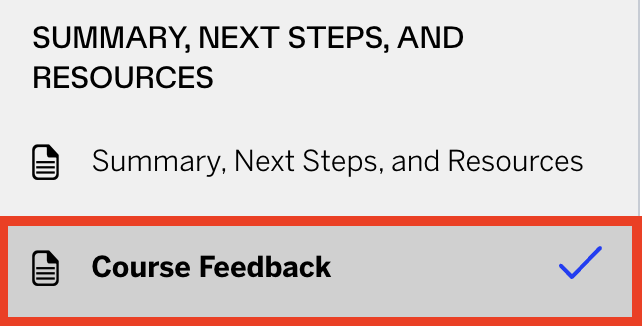
After completing a course, you will find the "Course Feedback" option. Please use it to share any suggestions or to tell us how the course helped you enhance your Qualtrics skills.